
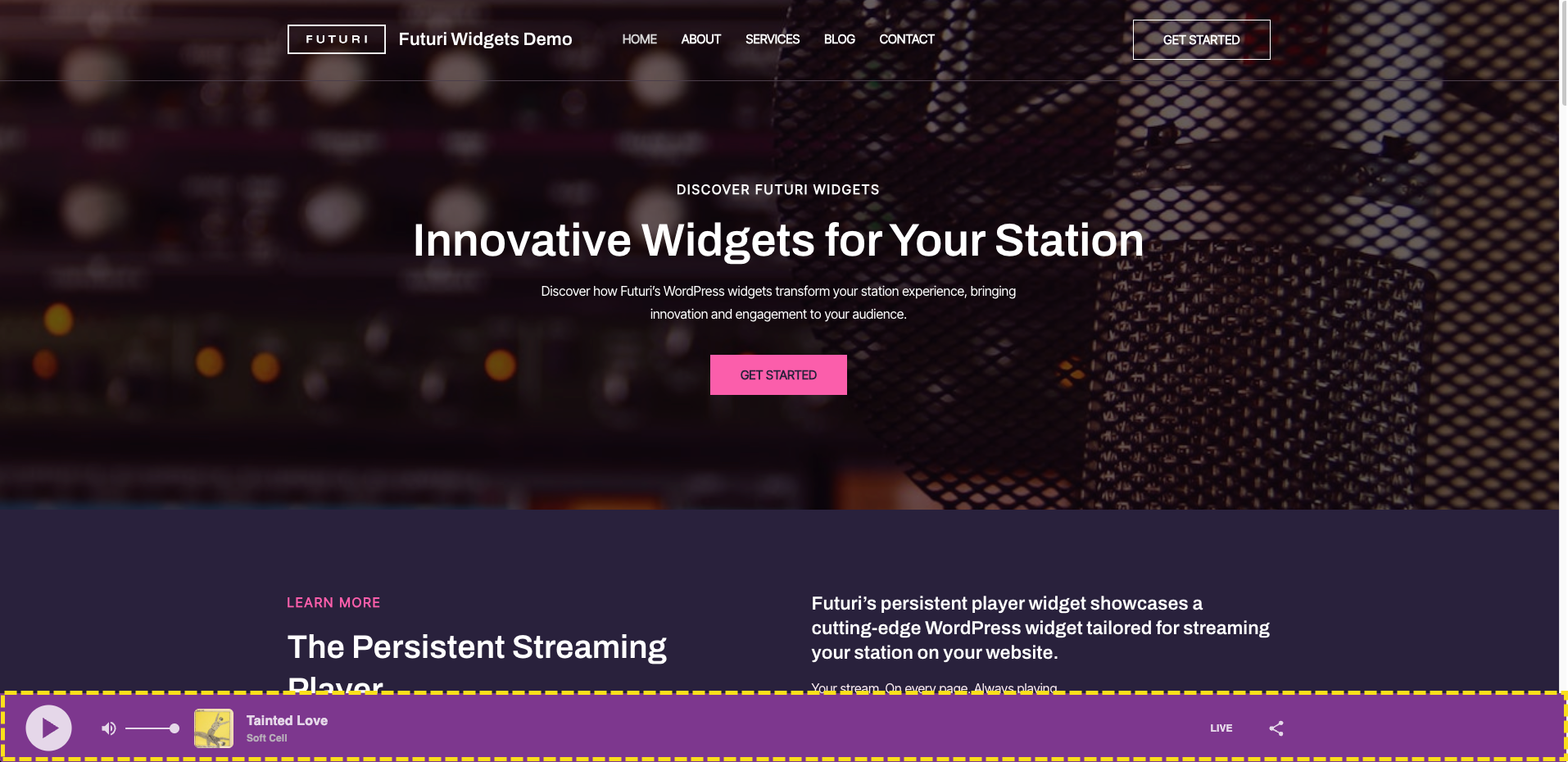
Futuri's persistent Streaming player is available for WordPress websites. It displays seamlessly across the bottom of all website pages, allowing continuous playback as listeners navigate your station's site.
Requirements
- A WordPress website. For best performance, use the latest version of WordPress.
- Ability to install plugins on your WordPress website.
Steps to Implement
- Download the WordPress plugin .zip (attached).
- Add the WordPress plugin by uploading the .zip on Plugins > Add Plugin. See WordPress documentation for information about managing plugins.
- Go to the Futuri Player Dashboard: players.futuristreaming.com.
- Click the Create button.
- Enter a name that will help you and your colleagues identify the player.
- Select the desired publisher.
- Choose the DAS AAC stream from the menu.
- Select a theme.
- Toggle the volume control on or off.
- Toggle the share control on or off.
- Toggle the display ad banner on or off.
- Optionally, you may enter a 300x50 px Google ad unit path. If you participate in FAN, contact Futuri Support for your ad unit path. You can also traffic your own ads if you use Google Ad Manager.
- Save.
- Click the Copy Config Path button at the top of the page.
- Go to WordPress and paste the config path into Settings > Persistent Player.
- Save changes.
- At this point, you should see the player on the website.
- If you don't see the player or encounter other issues, see Troubleshooting below.
Troubleshooting
If the player does not appear or work correctly:
- Confirm the plugin is activated. You should see a Deactivate button for the Persistent Player plugin, meaning the plugin is activated.
- Verify the player config path in Settings > Persistent Player is saved and matches the desired player config from the Players app.
- Clear the browser cache and refresh.
- Ensure you have the latest version of the plugin. Download from WordPress plugin .zip (attached) for the latest version.